Earnings Heatmap Guide
The heatmap answers: "On which day and hour do I earn the most per hour of work?" Here's how it's built, how to read it, and how to act on it.
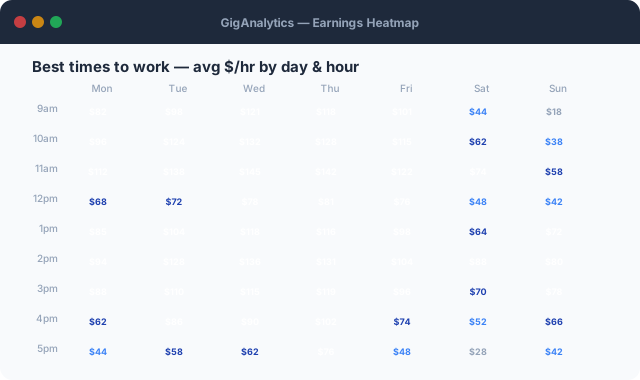
Animated demo — darker blue = higher $/hr. Your peak times fill in as you log more sessions.
What the heatmap shows
Each cell in the 7×18 grid (7 days × 18 hours, 6am–11pm) shows the average net earnings per hour of work for that day/time combination, aggregated across all your income streams.
How cells are calculated
SUM(net_amount for transactions in window)
÷ SUM(hours_worked for timer entries in window)
(weighted average across all matching entries)
The "window" for a cell is all timer entries and transactions where the timer started in that day+hour bucket over the selected date range (default: 90 days).
What counts as "work in this window"
- Timer entries: The start time determines which cell the hour falls into. A 2-hour timer started at 9am contributes to the 9am cell (the full 2 hours).
- Calendar imports: ICS events are bucketed by their start time.
- Transactions without time: Excluded from heatmap calculations. To include a stream, you need time data for it.
Filtering the heatmap
Date range
Default 90 days. Shorter ranges (30 days) show recent patterns; longer ranges (180 days) show seasonal trends. Minimum 14 days for meaningful data.
Income stream
Filter to a single stream to see when that specific client type or platform performs best — useful if streams have very different rate structures.
Stream comparison mode
Side-by-side heatmaps for two streams. Useful for deciding which stream to prioritize when you have scheduling choices.
Minimum entry threshold
Cells with fewer than 3 data points are grayed out by default to avoid misleading you with single-data-point outliers. Adjust in Settings → Heatmap.
Acting on what you see
The heatmap is diagnostic. Here's how to turn it into decisions:
🔵 Dark blue cells = protect these
Block your peak hours for high-value work. Decline low-rate requests during these windows. If you have a gig platform that lets you set availability, mark these hours as prime time.
⚪ Gray cells = explore or eliminate
If you consistently have gray evenings, maybe don't accept evening gigs at all — or only accept them at a premium rate. Use the rate threshold in Pricing Experiments to test a "off-peak surcharge."
📈 Look for weekday vs. weekend patterns
Many freelancers assume weekday morning is peak. The heatmap often reveals weekend morning consulting rates are significantly higher because there's less competition for clients' attention.
🔀 Cross-stream conflicts
If Stream A and Stream B both peak on Tuesday mornings, the heatmap reveals the opportunity cost of taking Stream B gigs. Use this to negotiate minimum rates for Stream B during those hours.
Limitations to be aware of
- ⚠️The heatmap shows correlation, not causation. High earnings at 9am may mean that's when you do your best work — or it may mean your best clients happen to request morning work. Experiment before restructuring your schedule.
- ⚠️Async work (writing, design) often has decoupled start/pay times. A design project started Monday may pay out Friday. GigAnalytics uses timer start time, which may underrepresent async income patterns.
- ⚠️Very new accounts (< 30 days of data) will have sparse heatmaps. Add historical data via CSV import to fill in the grid.
- ⚠️Timezone: all times are displayed in your account's configured timezone (Settings → Preferences). If you work across timezones with clients, you may want to review the raw data.